





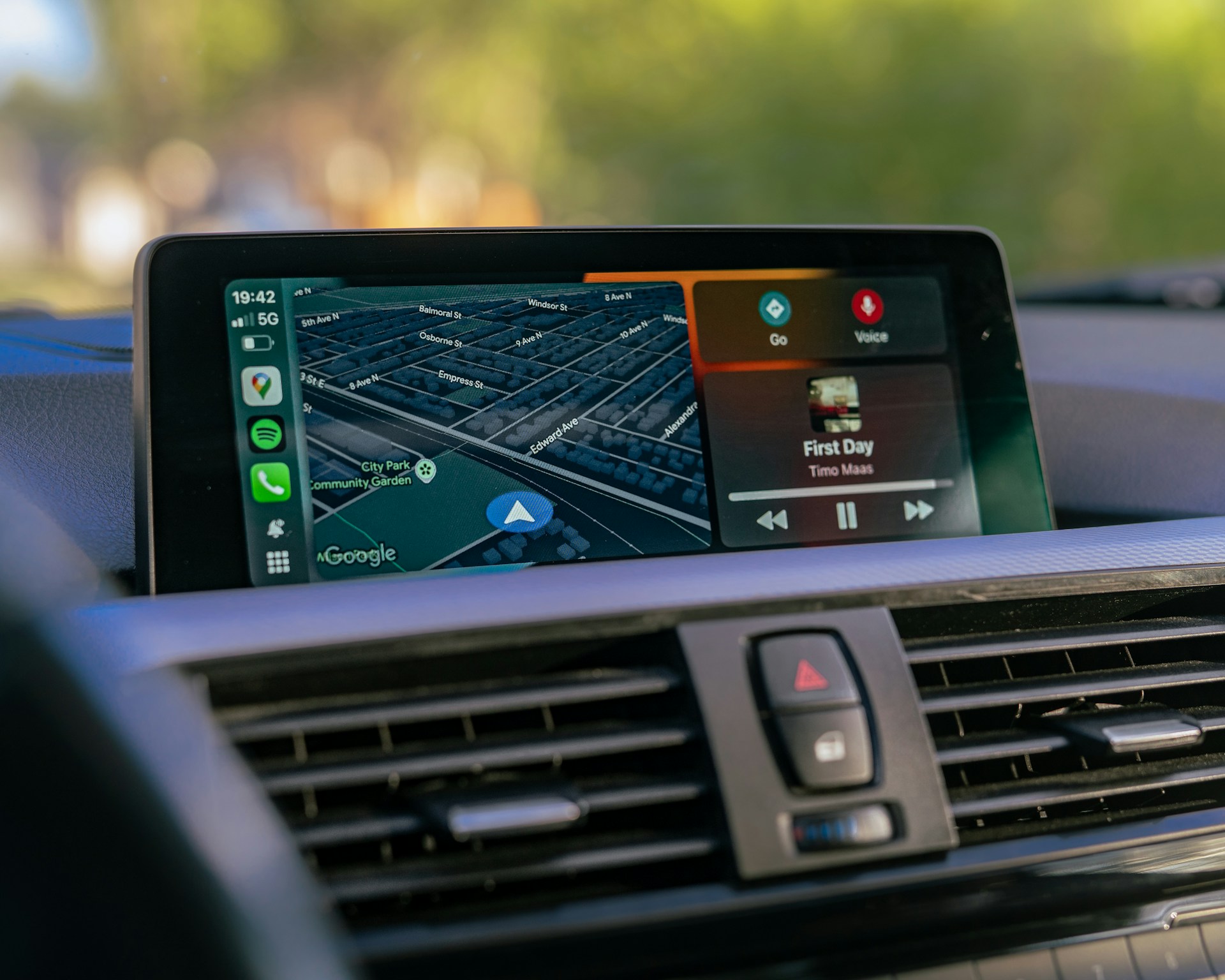
Enjoy a Smarter Summer Drive in Milford With Apple CarPlay
Apple CarPlay in a Chevy makes daily driving around Milford and along I-95 feel simpler, safer, and a lot more relaxed. With it, your iPhone works right through your Chevy touchscreen, so you can keep your hands on the wheel and your eyes on the road. No juggling your phone at red lights, no trying to tap tiny icons while traffic moves.
This guide walks through what Apple CarPlay is, how it works in a Chevy, and how to set it up step by step. It also covers how to check if your Chevy is compatible, how to customize your screen for trips to the beach or into New York City, and what to do if you want help from a professional team in Milford.
What Apple CarPlay Does For Your Chevy
Apple CarPlay takes many of the apps you already use on your iPhone and shows them on your Chevy infotainment screen in a simple layout. You connect your phone, and the system lets you use voice commands or big on-screen buttons instead of trying to handle your phone directly. It feels familiar because it looks a lot like your iPhone, just built for driving.
Some of the most helpful Apple CarPlay features for local drivers include:
- Apple Maps or other map apps for traffic along I-95, Route 1, and local Milford streets
- Siri voice control for hands-free calling and texting
- Music, podcasts, and audiobooks for longer drives or summer road trips
- Access to your favorite messaging and audio apps, where supported
The goal is safer, easier driving. By keeping your focus on the road, you are less likely to fumble with your phone in traffic or on winding coastal roads. It also supports hands-free habits that line up with Connecticut rules about not using handheld phones while driving.
Check Your Chevy For Apple CarPlay Compatibility
Many newer Chevrolet cars, trucks, and SUVs offer Apple CarPlay, but the exact features can depend on the model year and trim level. If you have a recent Chevy with a color touchscreen in the center of the dash, there is a good chance it can support CarPlay or already has it built in.
Here are a few easy ways to confirm:
- Look at your infotainment screen for an Apple CarPlay icon on the home page
- Open the Settings menu on the screen and check the smartphone or projection section
- Check your owner’s manual for Apple CarPlay details
- Ask a Chevy service or sales professional to confirm based on your VIN
If your current vehicle does not support Apple CarPlay, you still have options. Many drivers choose to upgrade to a newer Chevy model that offers the technology from the factory. In some cases, there may also be factory-style infotainment upgrades that can be installed to bring in smartphone integration, depending on your current system and hardware.
Step-by-Step Setup For Apple CarPlay In A Chevy
Once you know your Chevy supports it, setting up Apple CarPlay is usually quick. Here is a simple walkthrough to get you started.
1. Prepare your iPhone
- Make sure your iPhone is running a recent version of iOS
- Turn on Siri in your iPhone settings
- Turn on Bluetooth and Wi-Fi on your phone
2. Get your cable ready
- Use a good-quality Lightning to USB cable if your Chevy uses wired Apple CarPlay
- Plug the cable into the USB port labeled with a phone or USB icon inside the cabin
3. Connect for the first time
- Start your Chevy and keep it in Park
- Plug your iPhone into the USB port
- Watch the infotainment screen for a prompt asking if you want to enable Apple CarPlay
- Tap “Enable” or “Yes” on the screen
- Unlock your iPhone and tap “Allow” when it asks to connect with your vehicle
4. Wireless Apple CarPlay, where equipped
- If your Chevy supports wireless CarPlay, you may see a prompt to connect without a cable
- Use the pairing instructions on the screen and confirm the code on your iPhone
- After that first setup, your phone may connect automatically when you start the vehicle
If things are not working, try these quick checks:
- Make sure your Lightning cable is not damaged and is firmly plugged in
- Unplug and replug your iPhone, then restart the vehicle if needed
- Turn Bluetooth off and back on again on your phone
- Restart your iPhone if the car does not detect it
If Apple CarPlay still will not connect, it can be helpful to have a professional take a look at your infotainment system and connections to rule out any deeper issues.
Customize CarPlay For Summer Trips And Daily Drives
Once Apple CarPlay is set up, you can arrange it to fit the way you drive around Milford. You control the CarPlay home screen from your iPhone, and those changes show up on your Chevy display.
To customize your layout:
- On your iPhone, open Settings, then go to the CarPlay section
- Choose your vehicle from the list
- Drag and drop apps to move them, or hide apps you do not want to see on the screen
- Place your most-used apps, like Maps, Phone, and Music, on the first page
For local drives and summer road trips, helpful apps might include:
- A trusted map app for traffic, alternate routes, and quick detours
- Your favorite music streaming app or podcast app
- A parking or charging app if you drive or ride in a vehicle that uses public stations
- A simple messaging app you can control fully by voice
To keep things safe, try a few habits that make driving less stressful:
- Turn on Do Not Disturb While Driving so you are not tempted by constant notifications
- Ask Siri to read and reply to texts instead of looking at your screen
- Set your destination before you leave your driveway or parking spot
- Keep only the apps you truly use on your main CarPlay screen, so you tap less
Get Apple CarPlay Help At Chevrolet Of Milford
Setting up technology in a vehicle can feel a bit confusing, especially if it is your first time pairing a smartphone with a car. At Chevrolet Of Milford, the team works with these infotainment systems every day and can explain them in clear, simple steps. They can walk through Apple CarPlay setup with you, show you which features fit your daily drive, and answer questions about your Chevy screen and controls.
If you are thinking about a Chevy with Apple CarPlay already built in, the staff can help you compare different models and trims, then review available financing choices that fit drivers and businesses in Milford and the nearby communities. Whether you are getting ready for a weekend road trip, a commute into New York City, or just easier errands around town, they are ready to help make your Chevy feel more connected and more comfortable to drive.
Experience Seamless Connectivity and Confidence On Every Drive
Explore how Apple CarPlay in a Chevy can make your daily commute safer, easier, and more enjoyable. At Chevrolet of Milford, we are ready to walk you through compatible models, trim options, and features that fit your lifestyle. If you have questions or want to schedule a test drive, simply contact us and we will help you get started.
Connect with us


